Pre-Flight Checklist
The Pre-Flight Checklist gives you a personalized, step-by-step workflow to follow before every flight. Build it once with the steps that matter to you, then run through it each time to sync your flight plan, launch your tools, activate your addons, and start the simulator -- all from one place.
Written By Jim Thompson
Last updated 8 months ago
Getting Started
Click the CHKL button in the top navigation bar to open the Checklist page.
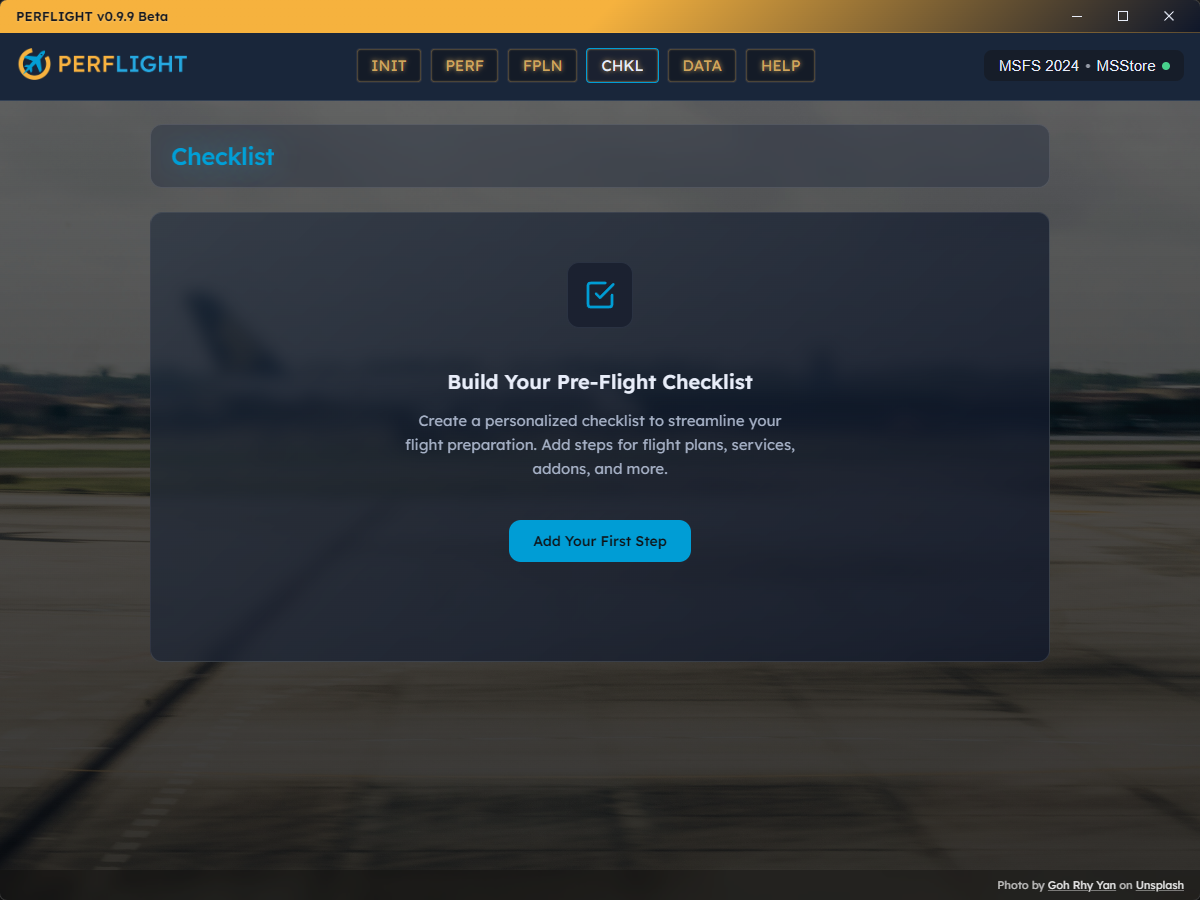
If this is your first time, you will see an empty state with a prompt to Add Your First Step. Click that button to enter Builder Mode and start adding steps.
Builder Mode (Editing Your Checklist)
Builder Mode is where you customize your checklist. To enter it, click the Edit button in the top-right corner of the Checklist page. The button changes to Done while you are in Builder Mode.
Adding Steps
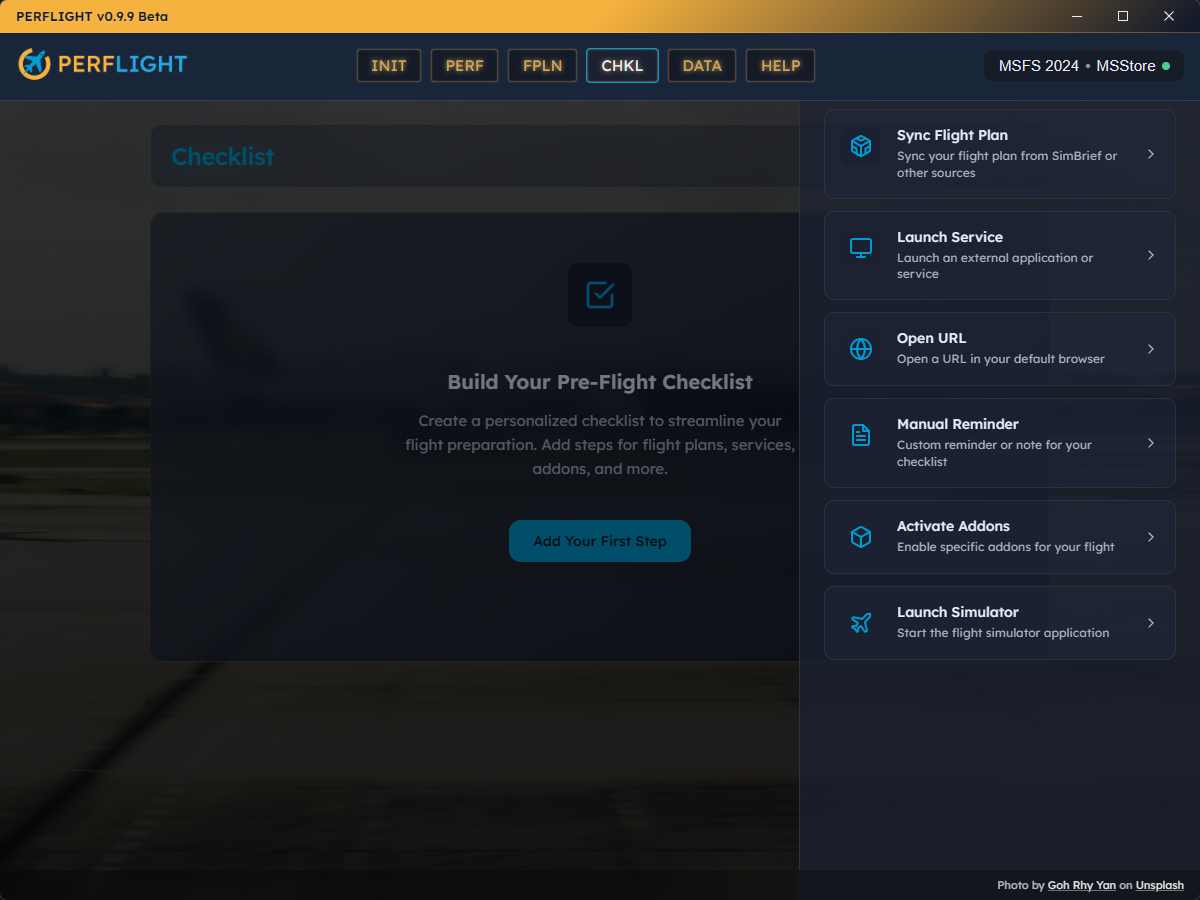
Click the Add Step button at the bottom of your checklist. A drawer slides open from the right showing the available step types:
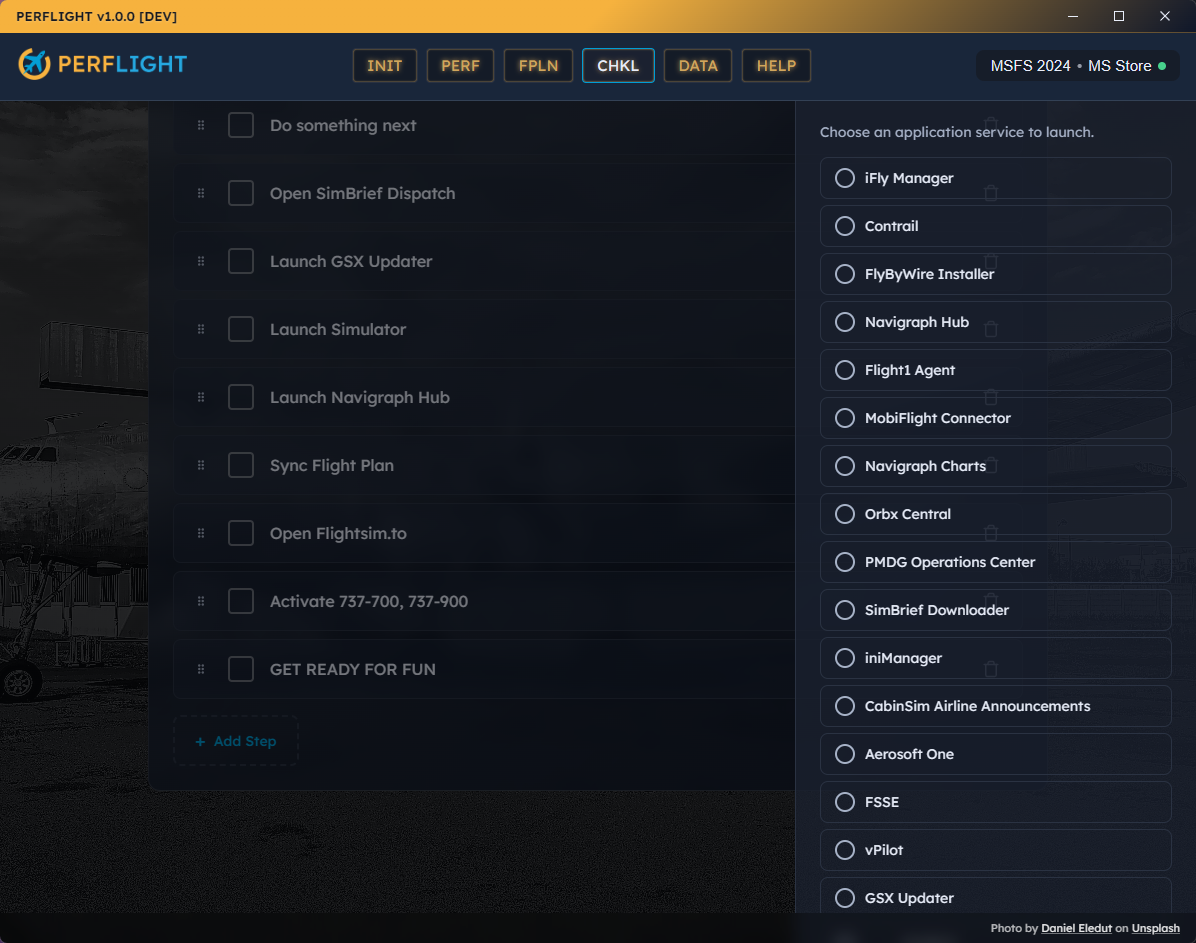
Some steps require configuration before they can be added:
Launch Service / Open URL -- Select which service to launch from a list of your configured services. If none are configured, you will be directed to the Flight Services page to add them first.
Manual Reminder -- Type the reminder text you want to see.
Activate Addons -- Search and select one or more addons from your library.
Reordering Steps
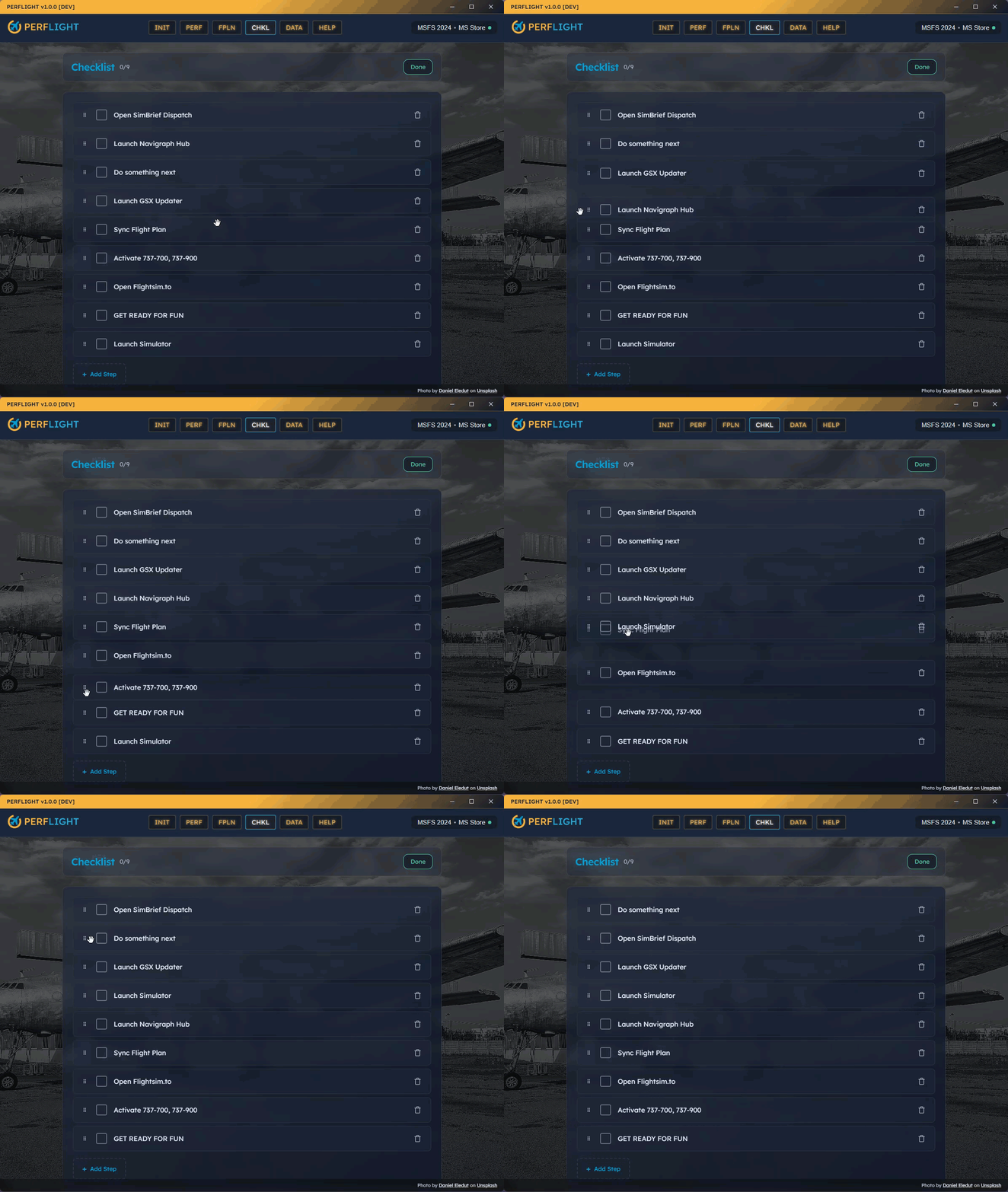
Drag steps up or down using the grip handle on the left side of each item. Your new order is saved automatically.
Removing Steps
Click the trash icon on the right side of any step to remove it.
Exiting Builder Mode
Click Done to return to Execution Mode. All your changes are saved automatically.
Execution Mode (Running Your Checklist)
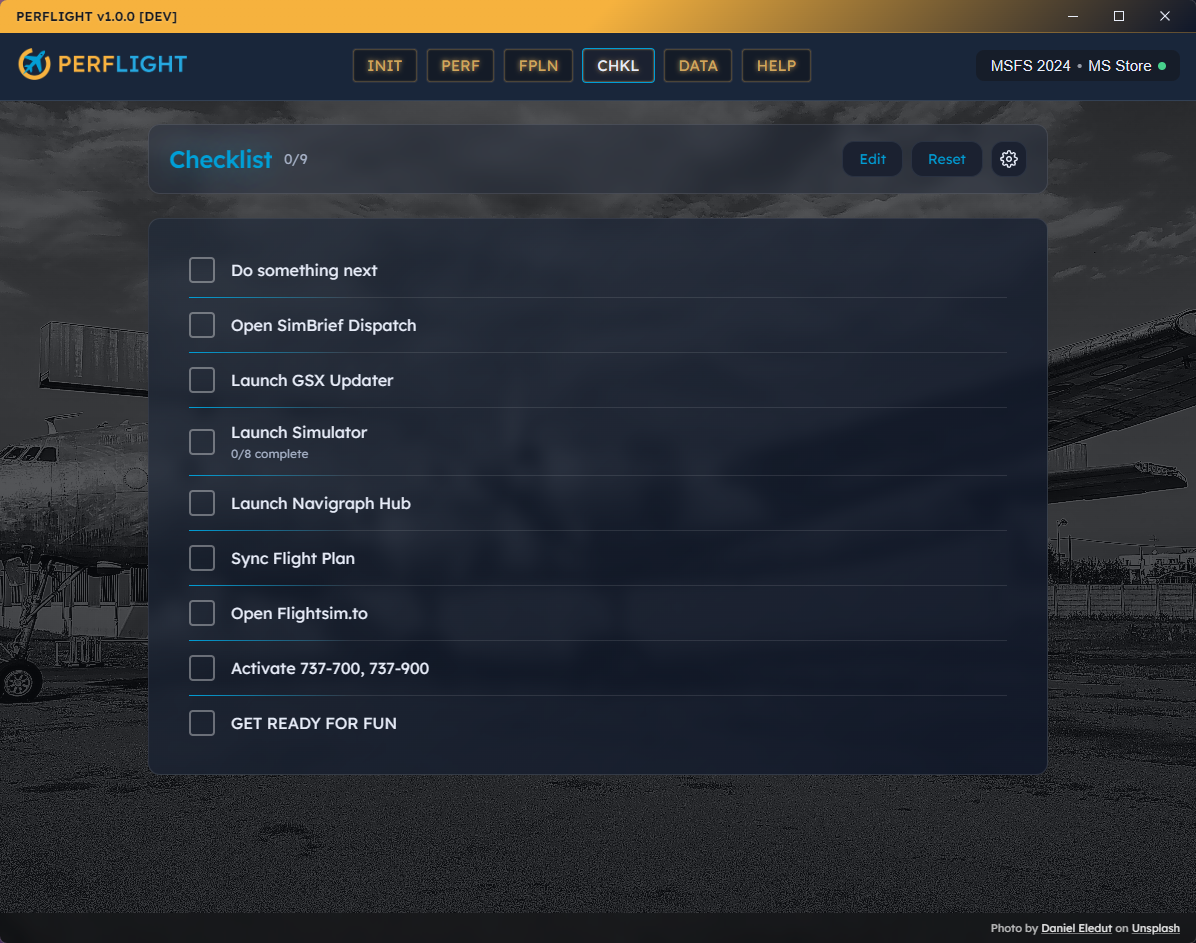
This is the default view when you open the Checklist page. Your steps are listed in order, each with a checkbox.
Checking Off Steps
Click the checkbox or anywhere on the row to execute a step. Here is what happens for each type:
Sync Flight Plan -- Triggers a SimBrief sync. A spinner shows while syncing, then a green check appears on success.
Launch Service -- Launches the configured application.
Open URL -- Opens the URL in your browser.
Manual Reminder -- Simply marks itself complete (it is just a reminder).
Activate Addons -- Creates the filesystem junctions to enable your selected addons in the Community folder.
Launch Simulator -- Starts MSFS (see Launch Enforcement below).
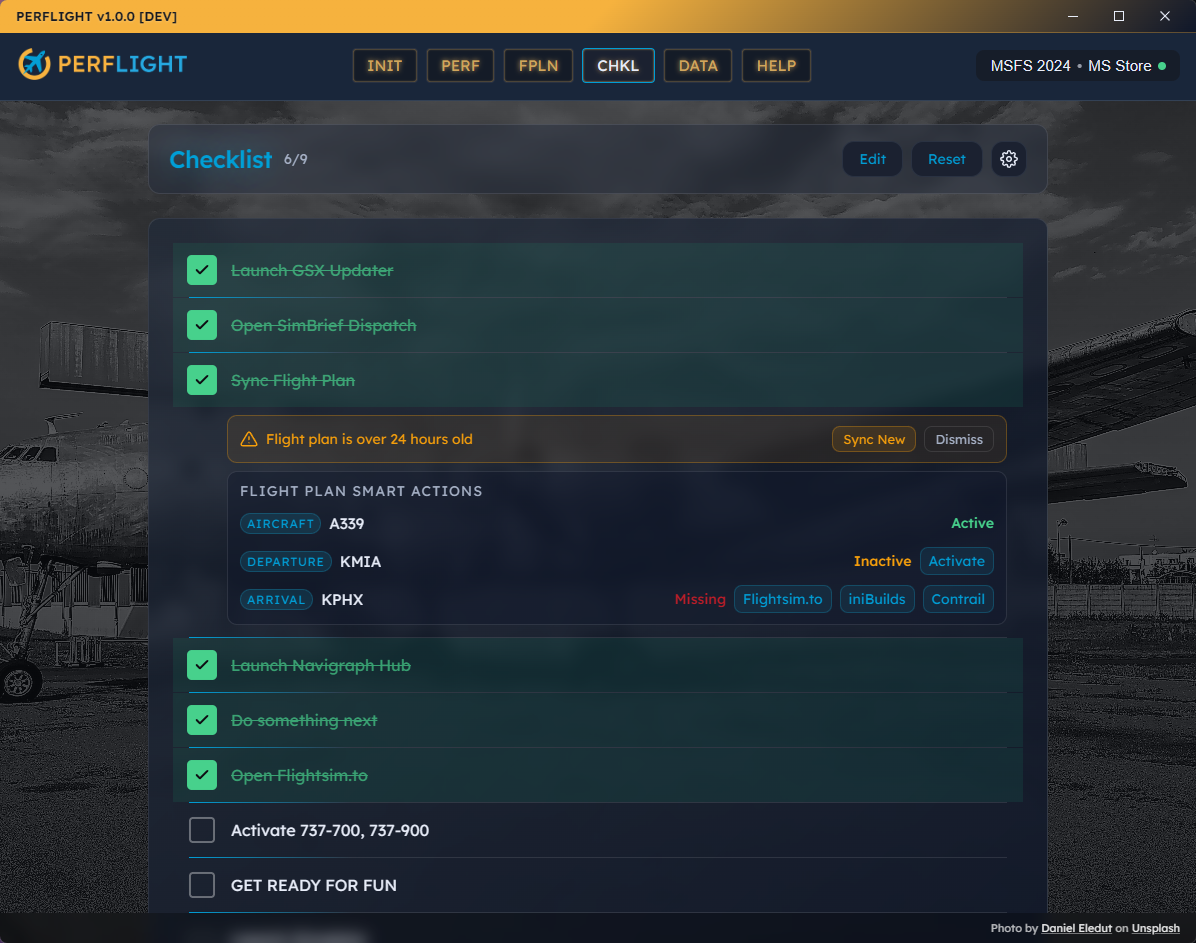
Checked items show a green checkmark and strikethrough text so you can see progress at a glance. The counter in the header (e.g., 3/8) tracks how many steps you have completed. It turns green when everything is done.
Handling Errors
If a step fails (for example, SimBrief is unreachable), the item shows a red error message below it. Click Dismiss to clear the error, then try again.
Resetting the Checklist
Click Reset to uncheck all items and start fresh. You will be asked to confirm -- click Confirm Reset within 3 seconds, or the reset is cancelled.
Smart Actions
When the Include Smart Actions setting is enabled and you have synced a flight plan, PERFLIGHT analyzes your route and shows smart suggestions below the Sync Flight Plan step. These tell you which addons to activate for your specific flight.
Smart Actions check three things from your flight plan:
Aircraft -- Do you have the aircraft addon installed and active?
Departure airport -- Do you have scenery for your departure?
Arrival airport -- Do you have scenery for your destination?
Each suggestion shows a status:
Active (green) -- The addon is already enabled. No action needed.
Inactive (amber) -- The addon is in your library but not enabled. Click Activate to enable it instantly.
Missing (red) -- No matching addon was found in your library. Buttons appear to search popular marketplaces (Flightsim.to, iniBuilds, Contrail).
Flight Plan Staleness
If your synced flight plan is more than 24 hours old (based on the departure time from SimBrief, not when you last synced), a warning appears:
Flight plan is over 24 hours old
You can click Sync New to pull a fresh plan, or Dismiss to hide the warning for the current session.
Settings
Click the gear icon in the header to access two settings:
Allow Incomplete Launch
Default: On
When turned off, PERFLIGHT prevents you from launching the simulator until all other checklist items are checked. If you try, a prompt appears showing how many items remain. You can choose to go back and complete them or override with Launch Anyway.
When turned on, the simulator launches regardless of checklist completion.
Include Smart Actions
Default: On
Controls whether Smart Actions appear after syncing your flight plan. Turn this off if you prefer a simpler checklist without addon suggestions.
Launch Simulator Step
The Launch Simulator step has special behavior. It shows a readiness indicator below the label:
"Ready" (green) -- All other steps are checked. You are good to go.
"X/Y complete" (gray) -- Shows how many steps remain before full completion.
This step is typically placed last in your checklist, but you can reorder it wherever you like in Builder Mode.
Tips
Start simple. Add just the steps you actually use before every flight. You can always add more later.
Order matters. Put "Sync Flight Plan" near the top so Smart Actions can guide the rest of your preparation.
Use Manual Reminders for things PERFLIGHT cannot automate, like checking weather on a website or tuning your HOTAS.
The checklist remembers your progress. If you close PERFLIGHT and come back, your checked items are still checked. Use Reset when you are ready for a new flight.
Still need help? Ask the team